


Meet Tracejourney: One of the Coolest and most useful Midjourney Companion Plug-ins!
Here’s what it can do to any image in your Discord server:
Vectorize (Convert to SVG)
Upscale (2X or 4X)
Remove Background (cut the subject out from background)
Creative Upscale (similar to Midjourney’s creative upscaler)
Convert (convert to PNG, JPG or WEBP)
Quick Adjustments (contrast, brightness, color, sharpness)
Grid Split (split image into 4 slices, each slice matching the original aspect ratio)
You need to keep this tool handy, it’s been an absolute game changer for me and I use it almost every day and I think you should too! Here’s a quick install guide:
Join the Tracejourney server and accept the invite

Link 👉 https://discord.gg/8ynJNQz3Sm
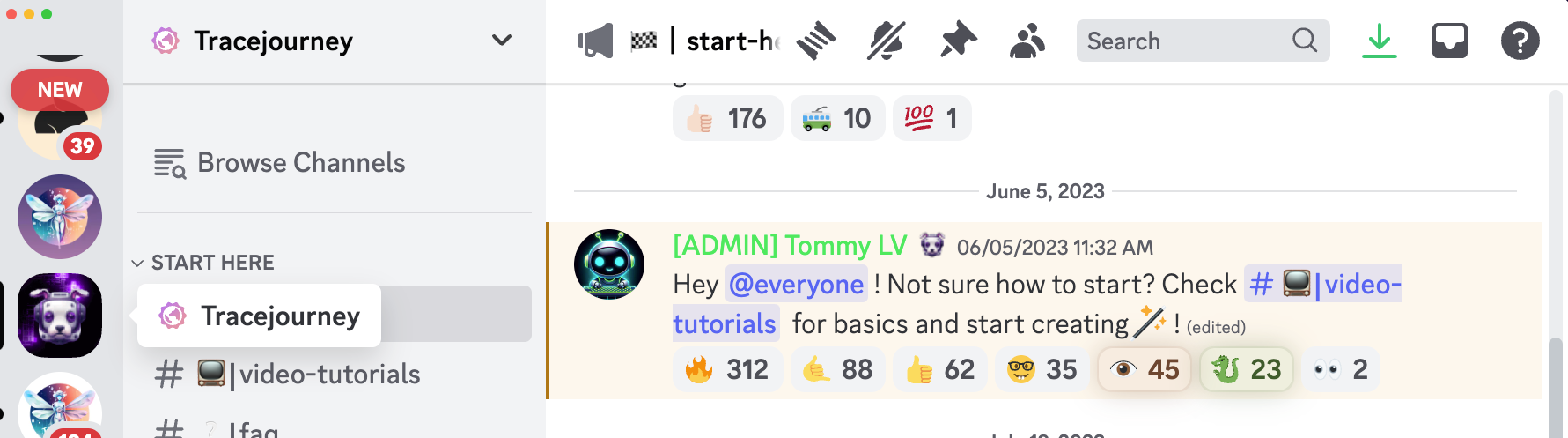
Now you’re a member of the Tracejourney server, but you still have to invite the Tracejourney bot to your server so you can start using it on your images.
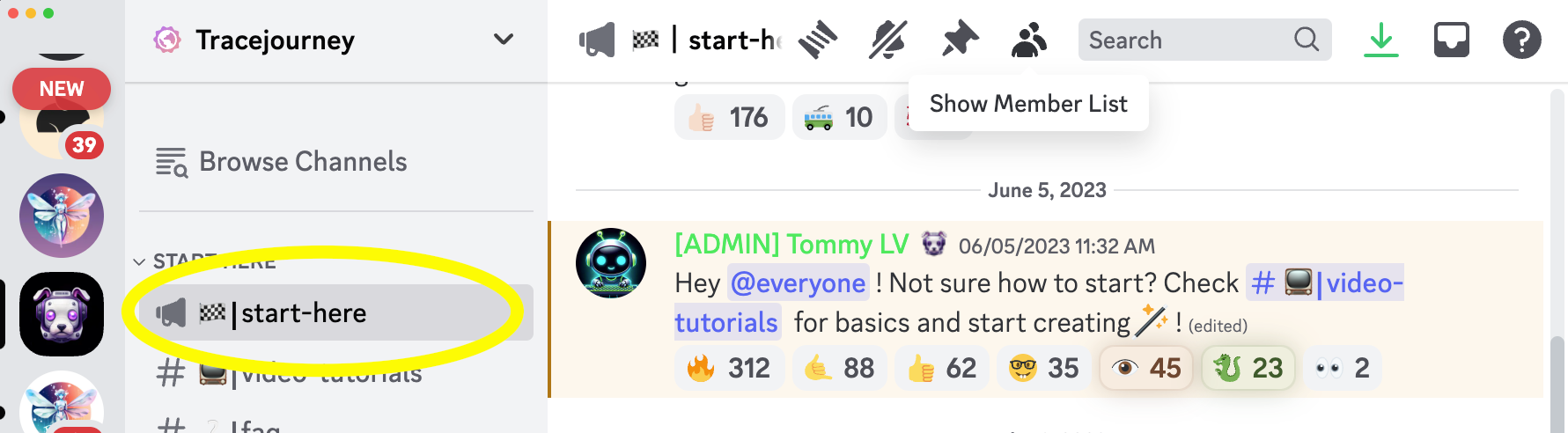
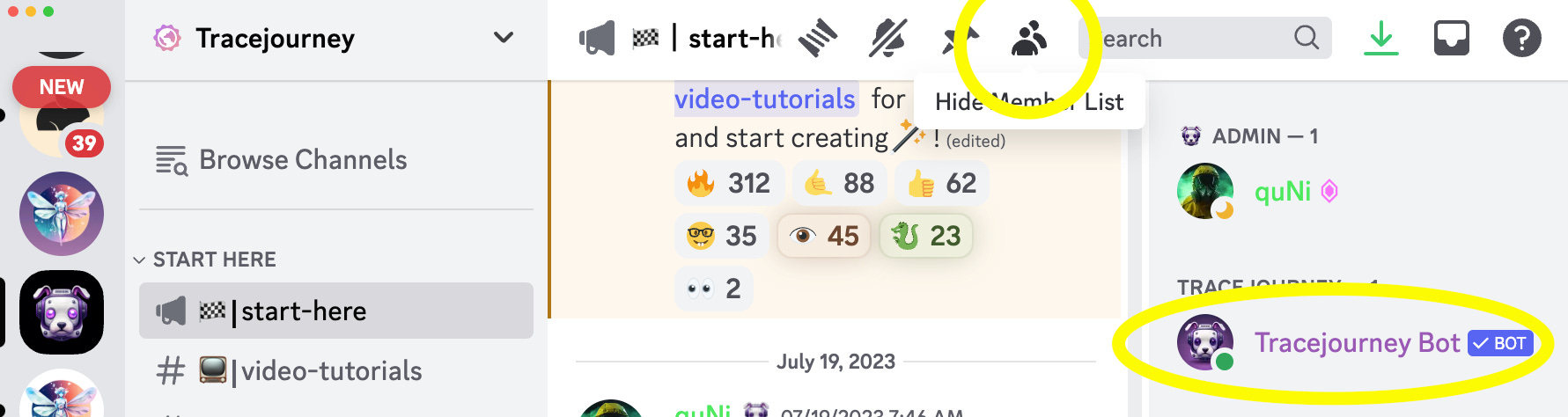
Inside the Tracejourney server, navigate to a channel where the bot is present, for example in #images or #start-here. On the right side of the Discord interface, locate the member list. Scroll through the list until you find the Tracejourney bot. It should be visible at the top.
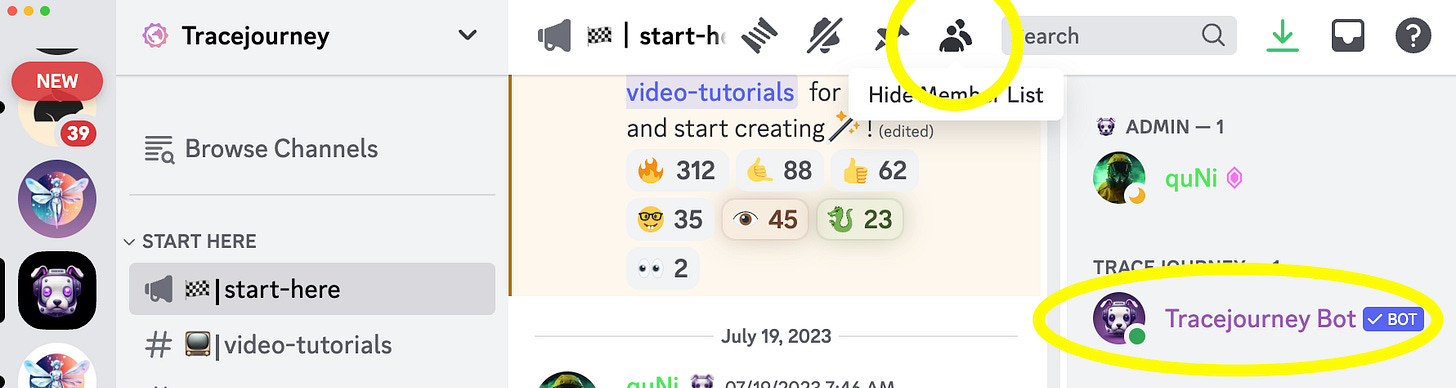
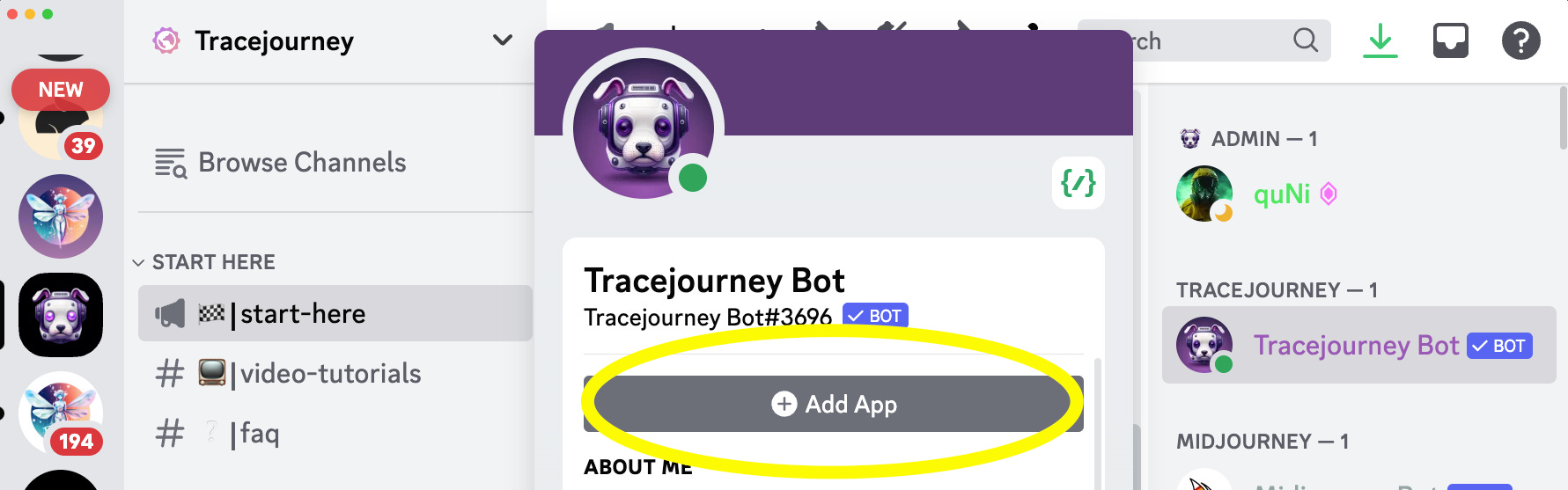
Click on the Tracejourney bot's name in the member list. This will open the bot's profile in the right pane of the Discord interface.
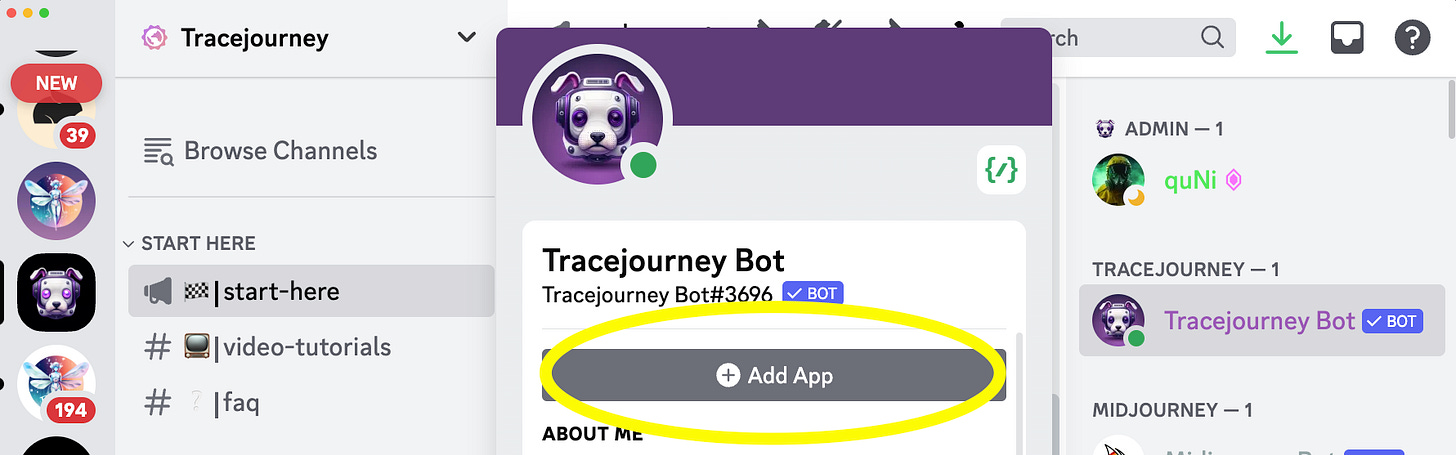
In the bot's profile, click"Add App." Click on that button to initiate the process of adding the Tracejourney bot to your server.
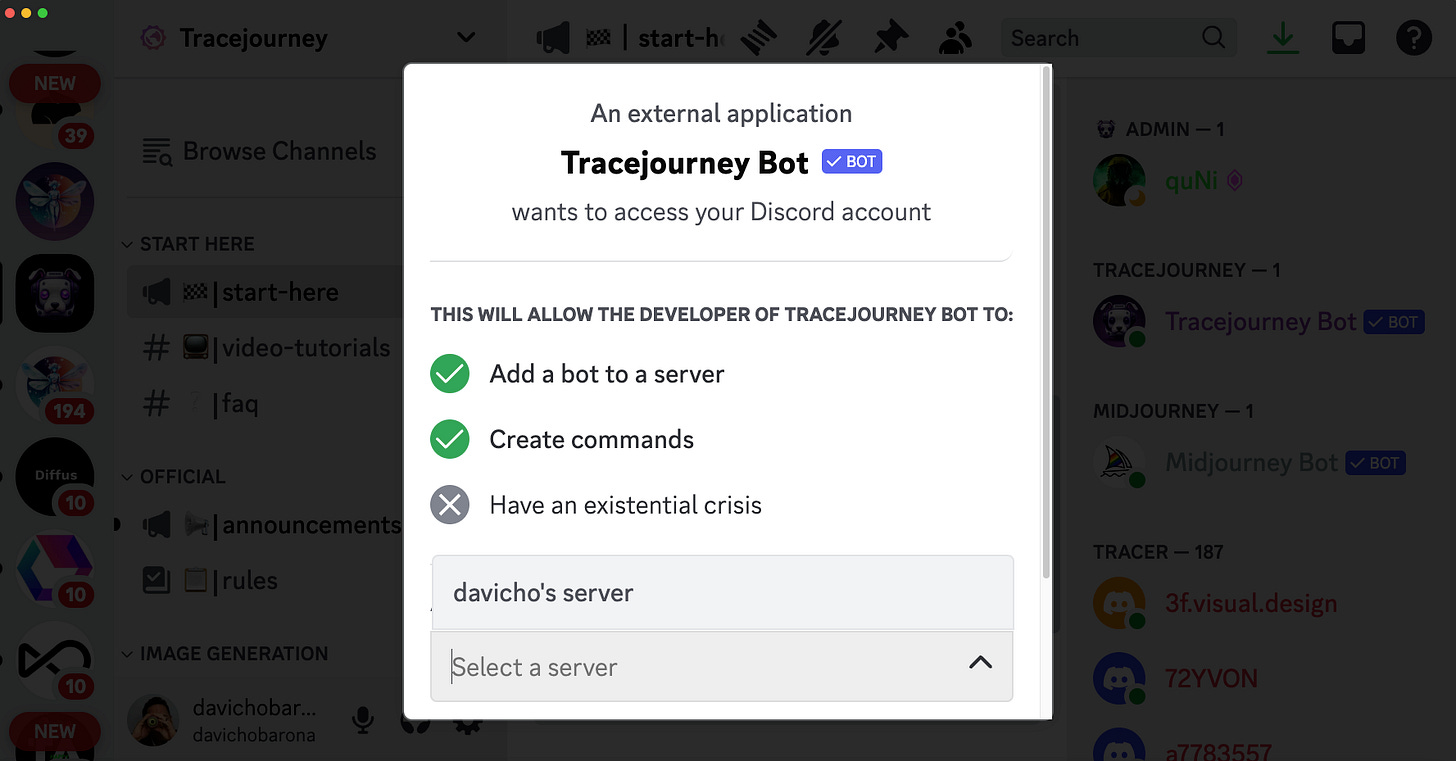
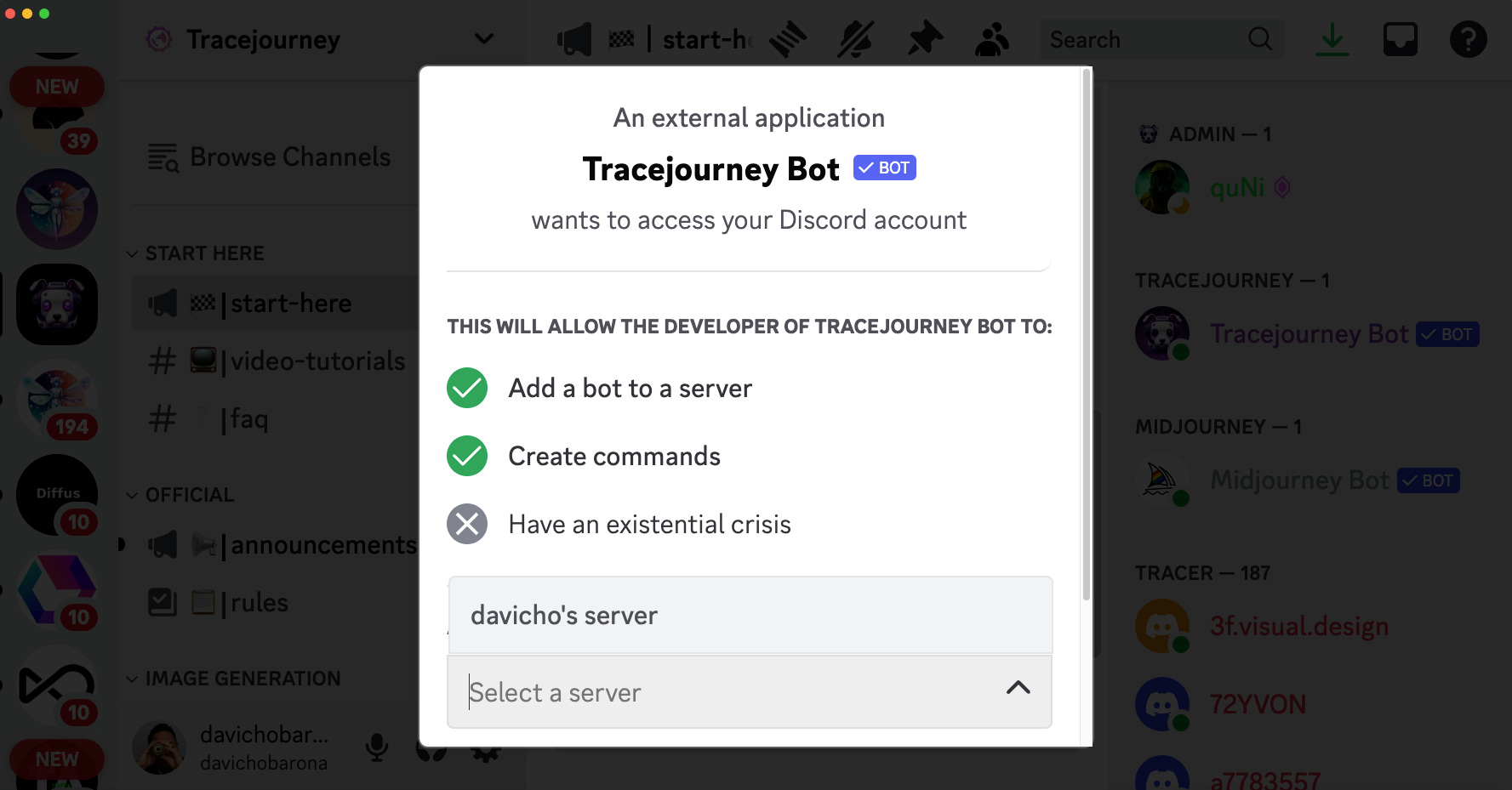
Discord will display a list of servers to which you can add the Tracejourney bot. Choose the server you want to add the bot to by clicking on it.
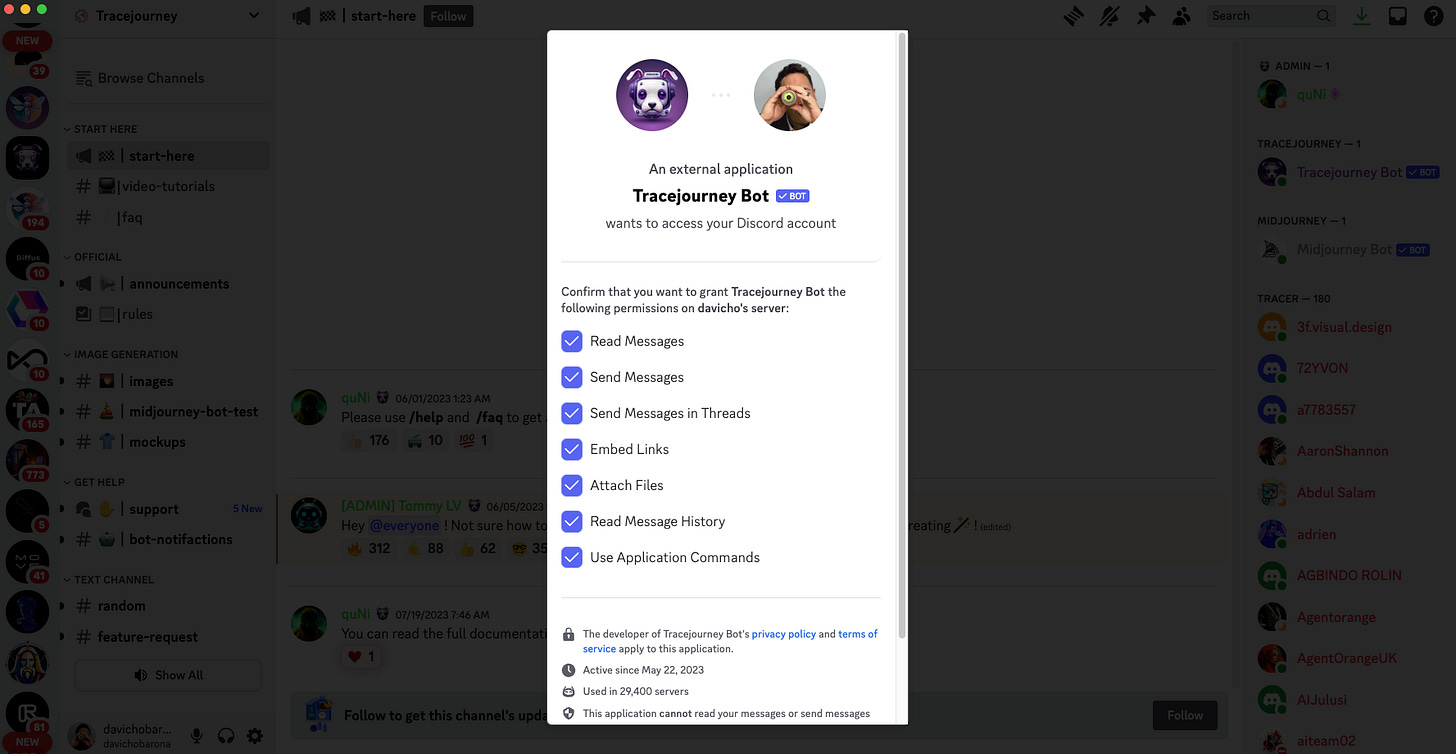
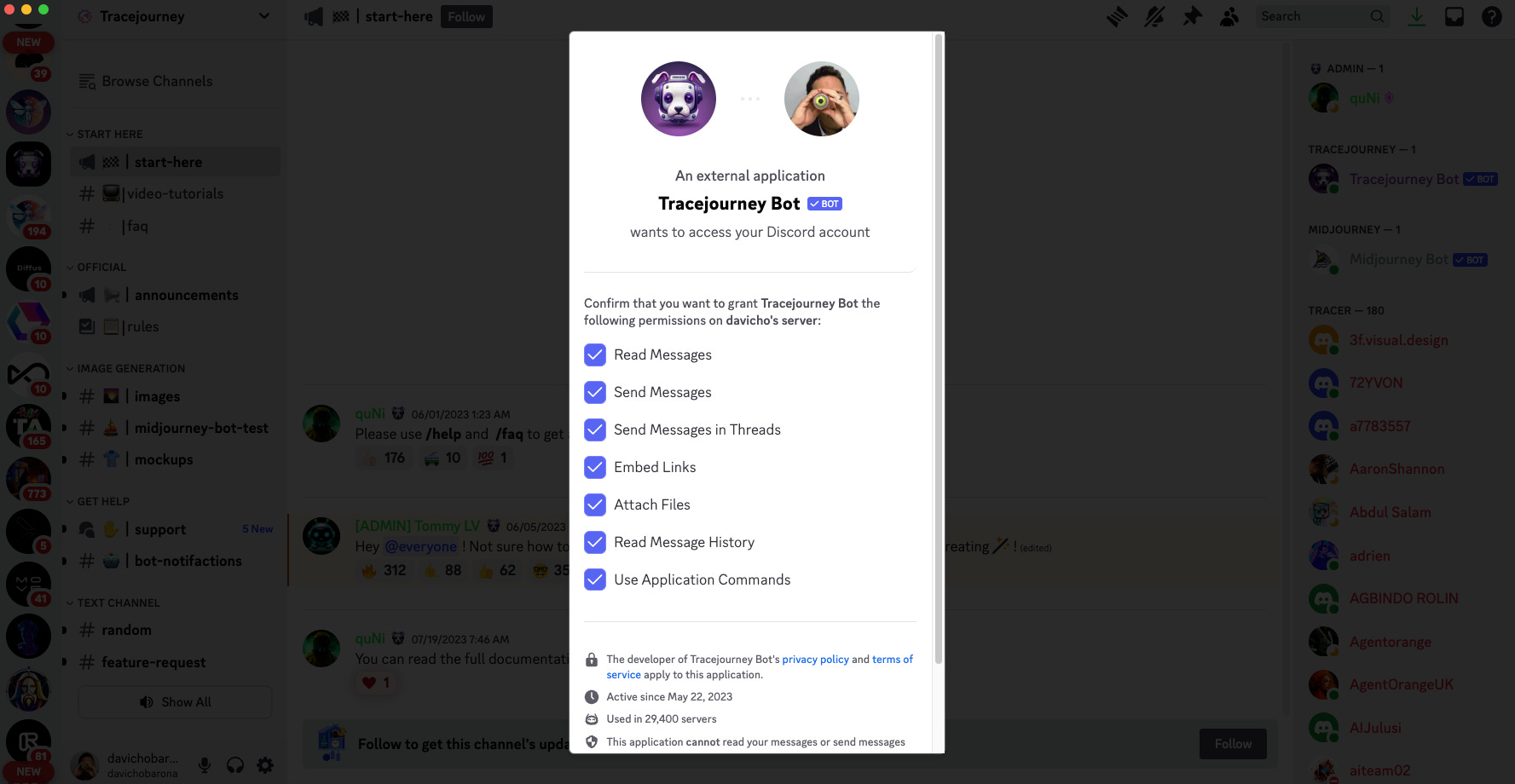
Review the permissions requested by the Tracejourney bot. These permissions determine what the bot can do on your server. The preselected permissions are necessary. If you remove permissions, the bot will not work properly. Click on the "Authorize" button to add the Tracejourney bot to your server.
After authorizing the bot, switch to your Discord server. You should see the Tracejourney bot listed in the member list on the left side. The bot's name and avatar will be visible, indicating that it has been successfully added to your server.
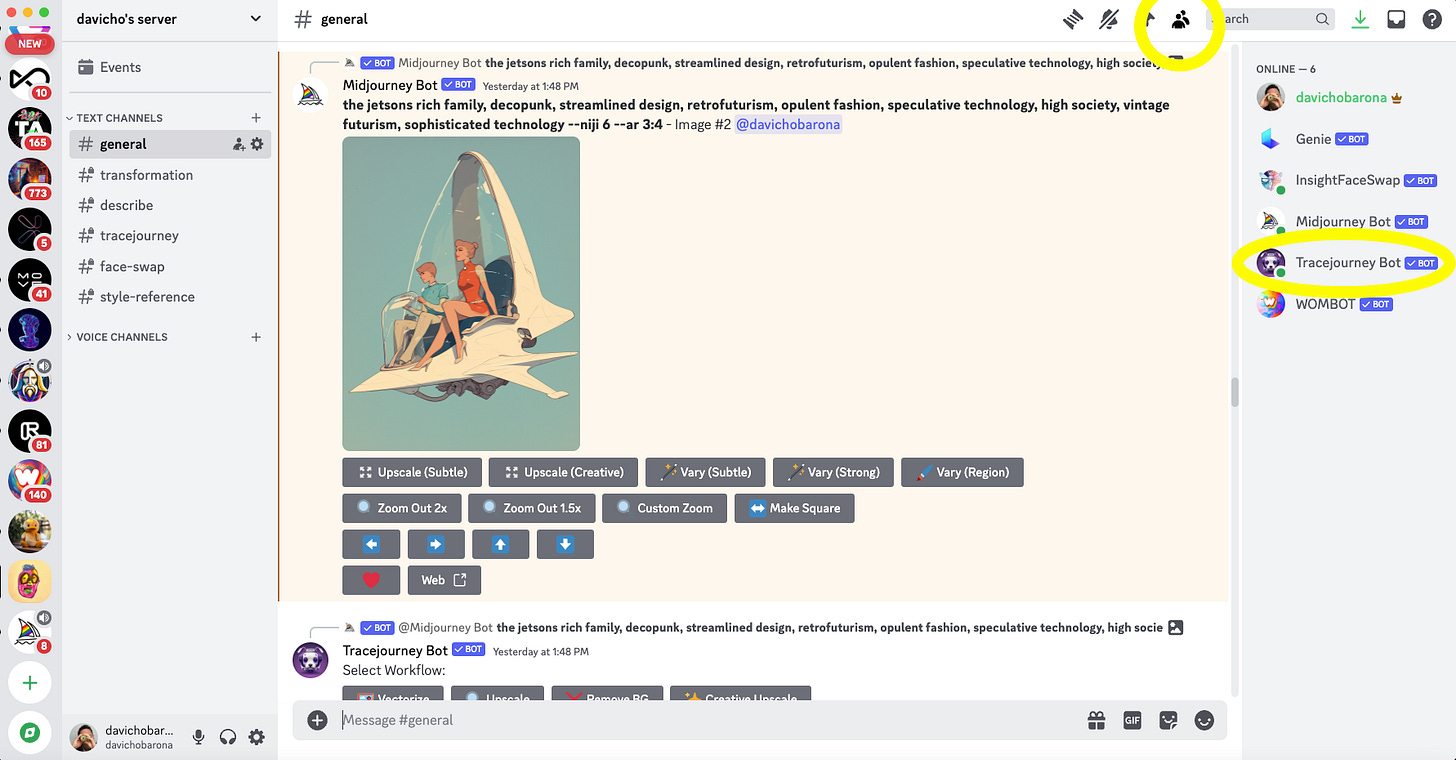
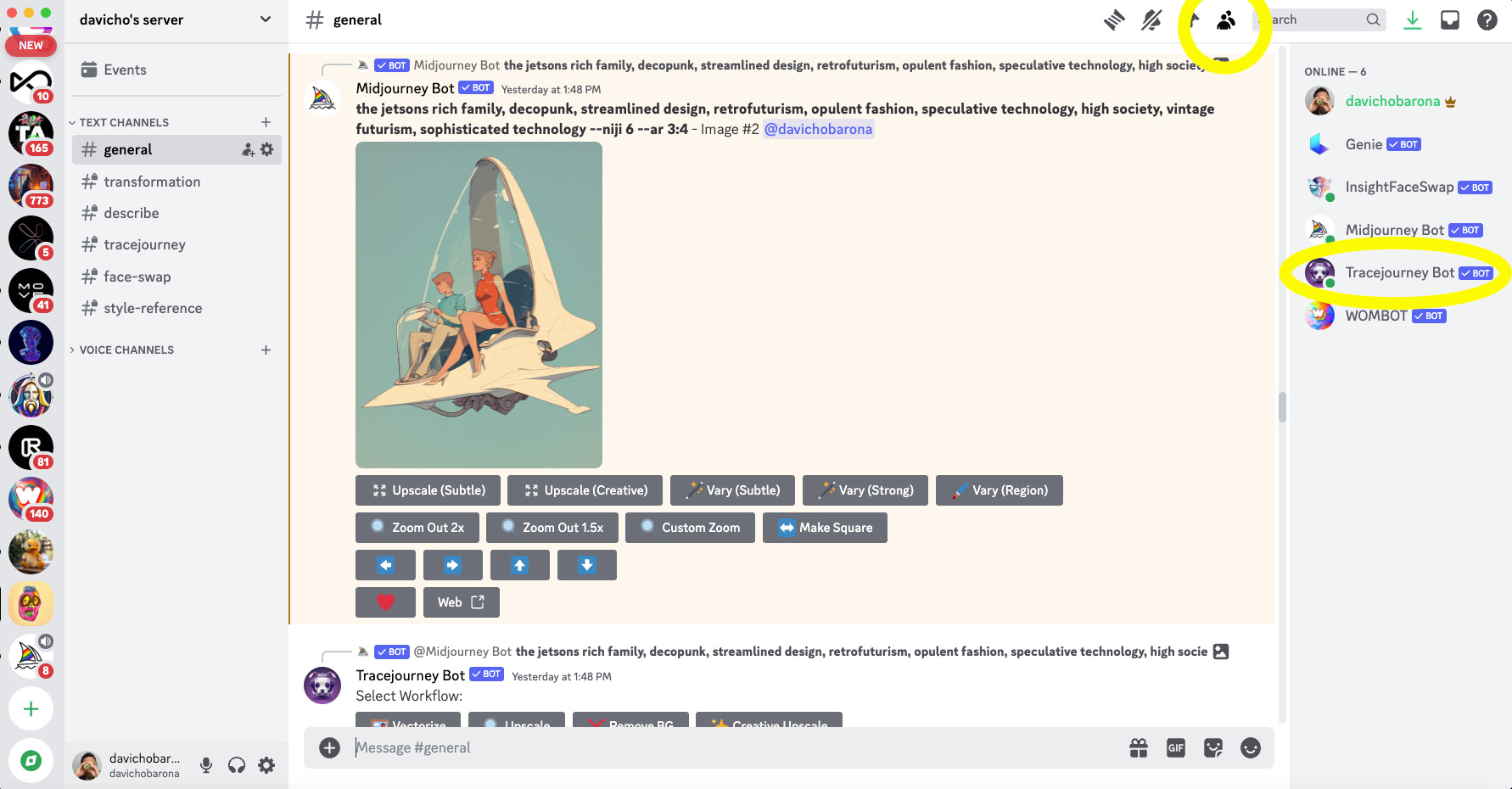
That's it! You have successfully added the Tracejourney bot to your Discord server. You can now interact with the bot using its commands and utilize its features within your server.
⚠️ In order to apply Tracejourney’s features to your Midjourney images, both bots need to be in the same server. Tracejourney can only react to images that are present in the same server.
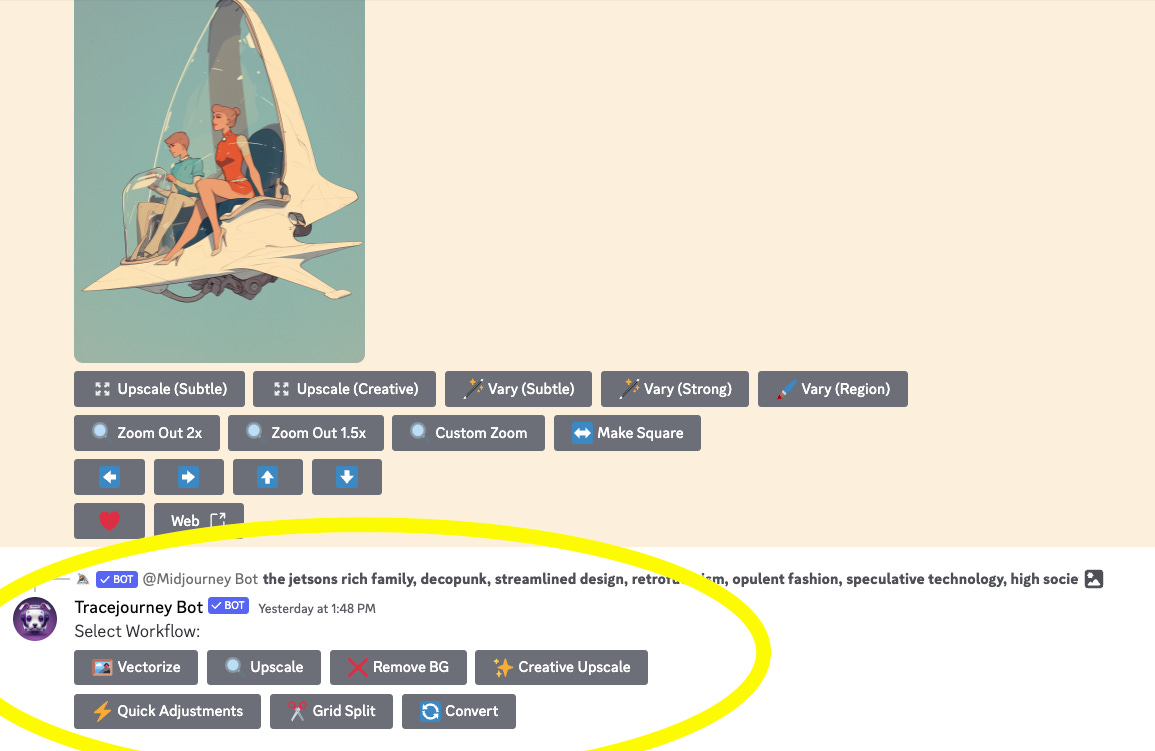
Now every time you upscale a Midjourney result, you’ll see a new set of controls underneath the upscaled image, now start playing around with it!
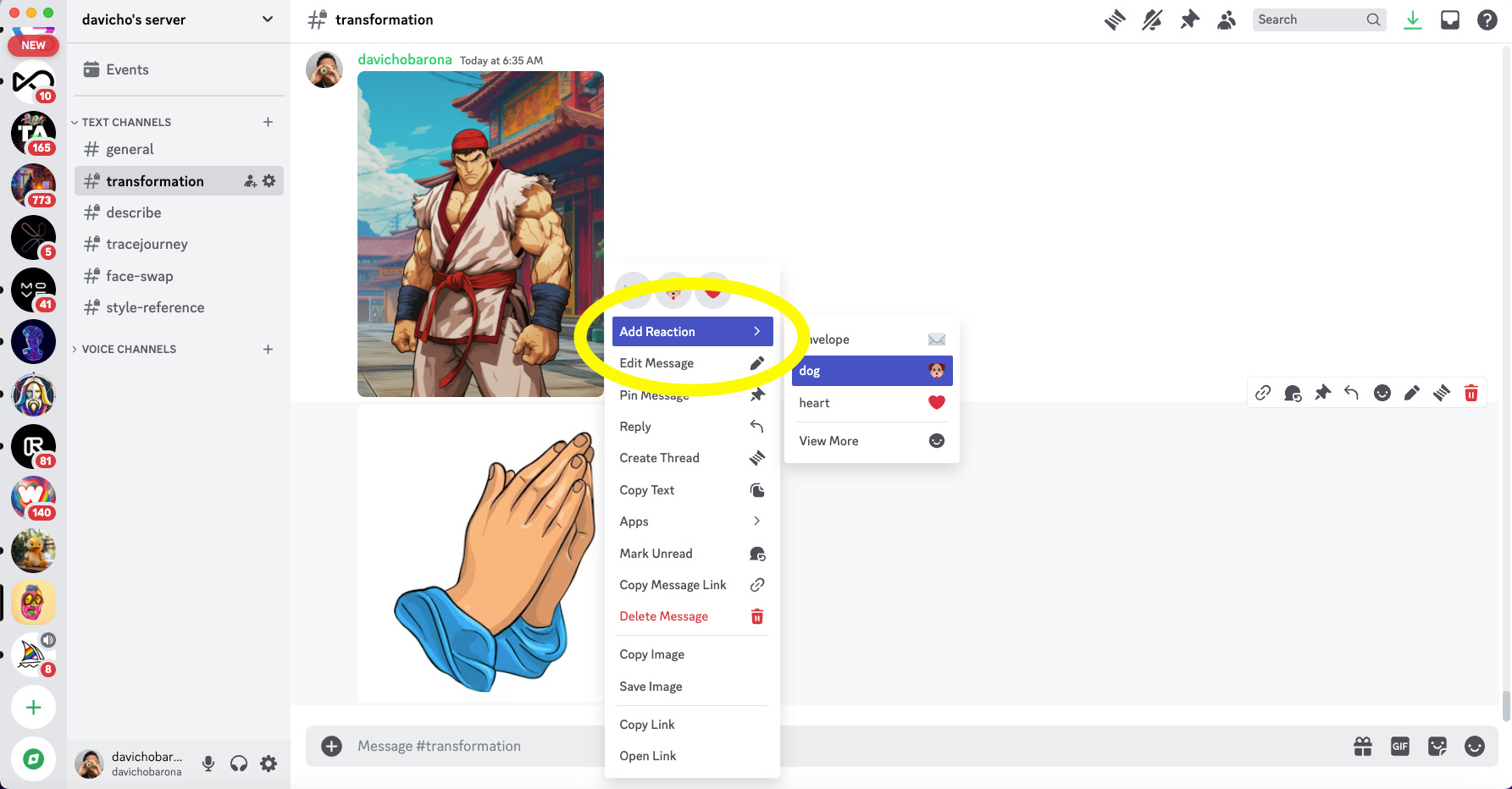
If you want to use Tracejourney with your own images from your device, upload the image into the Discord server where the Tracejourney bot is active, right-click on the image you want to edit, click “add reaction” and select the 🐶 (dog) emoji, this will bring up the Tracejourney control panel at the bottom of your Discord window and you can now use the Tracejourney bot on that image.
Consider This:
You may only have a certain number of credits as a free Tracejourney subscriber, so if you end up using the tool a lot, I recommend becoming a paid member.
If you want to subscribe, enter /sub in the Discord server with Tracejourney bot present, Tracejourney will reply with a unique link to your checkout page. Click on the link and follow the steps on the site.
For more information on Tracejourney and this process, check out their Website.